🐧 Switch to Linux
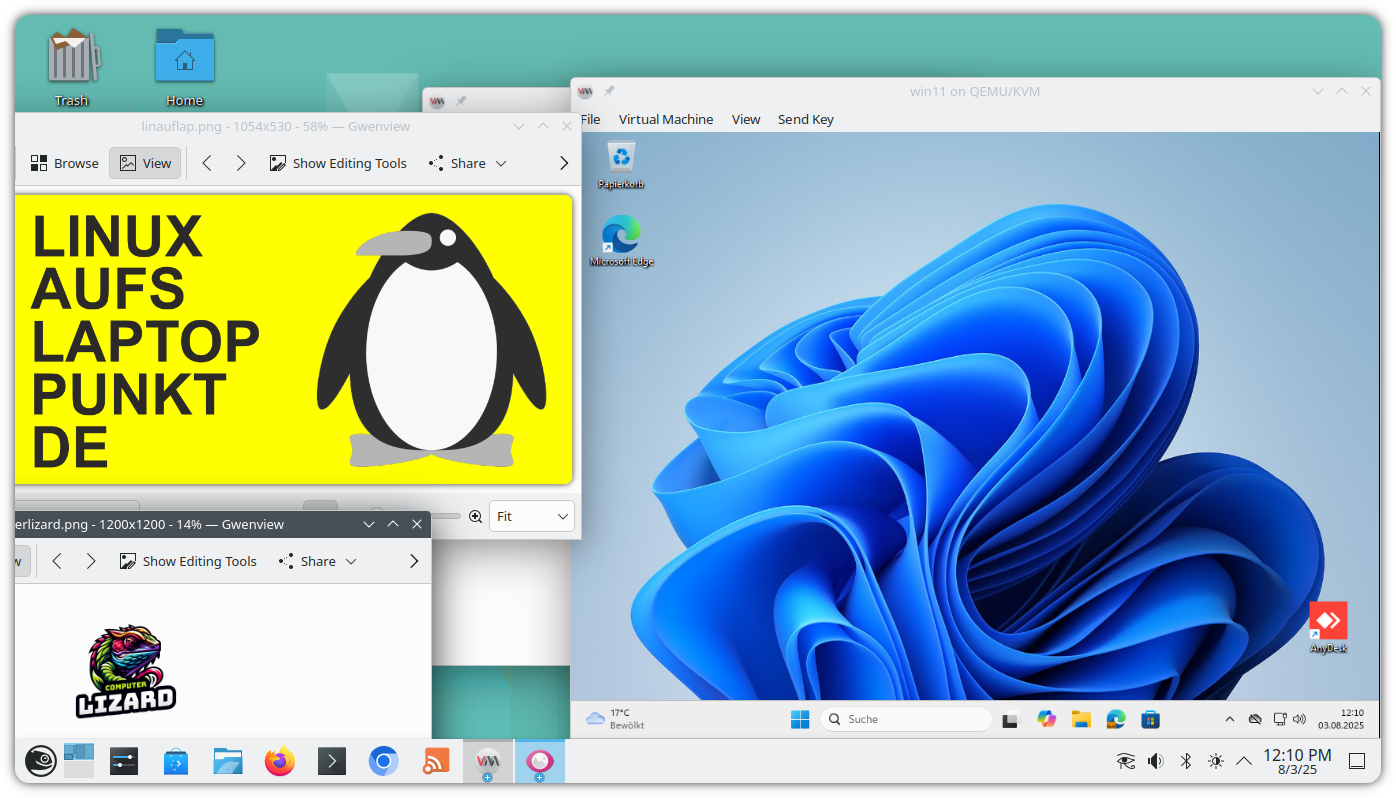 ✅ Linux allows you to use your laptop without Windows, or, depending on the specifications of your device, to use Windows as a virtual machine.
Which Linux distribution should I use?
ostrmn.com trusts in openSUSE Leap Linux with low barriers to switch to an enterprise grade solution. openSUSE Leap comes with access to a ton of software such as Steam, Discord, Signal or Slack. SUSE Linux has its roots in Nuremberg.
Learn Linux
Donate your old laptop
Do it yourself
 → Check the manufacturer's website for instructions on how to change the boot order to ensure your device will start from a USB drive. Examples: Lenovo, Acer, Hewlett Packard (HP).
→ You have an 8 GiB USB drive available and its content can be deleted.
→ You download the openSUSE Leap ISO file or get another Linux distribution.
→ Use software such as balena Etcher to create a bootable USB drive using the ISO file, allowing you to start the installation of Linux from the USB drive.
→ Plug in your USB drive while your laptop is powered off. Make sure you prepared the boot order.
→ Power on your device while the USB drive you prepared is plugged in and follow the instructions on your screen.
Linux software for daily use
Find and open already installed software on openSUSE Leap using the start menu (Windows key). For instance, to open Discover to install additional software, press the Windows key and type "Discover".
- Install additional software: Discover
- Web browser: Firefox and Chrome
- Streaming: OBS Studio
- Games: Steam
- Chat: Discord
- Messenger: Signal and ZapZap for WhatsApp
- E-Mail: KMail and Thunderbird
- Calendar: KOrganizer
- File explorer: Dolphin
- Office: LibreOffice
- Notes: Obsidian
- Play videos and music: VLC
- Edit videos: Kdenlive and OpenShot
- Edit audio: Audacity
- Sheet music: MuseScore
- View images: Gwenview
- Edit images: Gimp
- PDF viewer: Okular
- Rearrange PDF pages: PDF Arranger
- Password manager: KWalletManager and KeePassXC
- Unzip compressed files: Ark
- Make a screenshot: Spectacle
- Find colour from screen: Color Picker
- Backup your data: BorgBackup/Vorta for KDE
- Collaboration: Slack and Portal for Teams
- Virtual machines: Virtual Machine Manager (KVM) and VirtualBox
- Remote Desktop: FreeRDP Client
- Connectivity to your mobile phone: KDE Connect - requires your router to be set up to allow communication between the involved devices in your Wifi network.
- Have your own cloud service: Nextcloud - requires an extra device and possibly connectivity from the internet.